
If you want to pair a new remote with your Samsung TV, we’re here to help with our easy to follow guide.
You may be here because you’ve lost your remote, and need to pair your Samsung TV with a new one. But you may also be here because you have more than a few devices in your home, and wouldn’t mid being able to control them from one universal remote – a smart move if you ask us.
The good news is that setting up your remote with a Samsung TV is pretty straight-forward, and you can go about it in a few different ways. You can use 4 digit codes, 5 digit codes, or even do it with no codes at all – and in this guide you’ll find step-by-step instructions to help you. We’ve also included a quick guide to setting up your phone as a remote via the SmartThings App, just in case you need a temporary solution.
Quick Answer
You can setup a universal remote with your Samsung TV in two ways – with or without codes.
Here’s how to program a universal remote for your Samsung TV – Power on your TV > select ‘TV’ as the device > start the setup mode > enter the right code > test if the remote works.
For more details, you can refer to our guide below. We have some common codes and how-to guides.
4 digit code for Samsung TV – remote codes list
For 4-digit and 5-digit codes, use the following lists based on your universal remote’s requirements and your Samsung TV model. You can try these codes on your device if you are not sure which code is right for your model. Below we’ll go into more detail on how to find the right code based on your Samsung TV.

| 4-digit codes | 4-digit codes | 5-digit codes | 5-digit codes |
|---|---|---|---|
| 1249 | 587 | 10408 | 11060 |
| 37 | 1235 | 10178 | 10587 |
| 1584 | 3131 | 10329 | 10482 |
| 812 | 9 | 11632 | 10217 |
| 1506 | 178 | 10766 | 10702 |
| 556 | 370 | 10030 | 11575 |
| 1619 | 1458 | 12051 | 10812 |
| 2103 | 644 | 11959 | 10056 |
| 618 | 1630 | 10427 | 10650 |
| 93 | 2051 | 10060 | 10032 |
How do I find universal remote codes for Samsung TV?
- Older Models: Check the back of the TV for a label with the model code.
- Newer Models: Use your TV remote to navigate to Settings > Support > About this TV. The model code will be displayed on this screen.
How to set up a universal remote with Samsung TV
If you prefer a more hands-on approach or if the automatic method doesn’t work, you can try the Manual Code Entry method.
Step1
Find the code for your model
Before you jump into programming the remote, you need to find the code for your specific Samsung TV. You can try to find by using methods listed above or you can also try some of the common codes mentioned in the table.
Step2
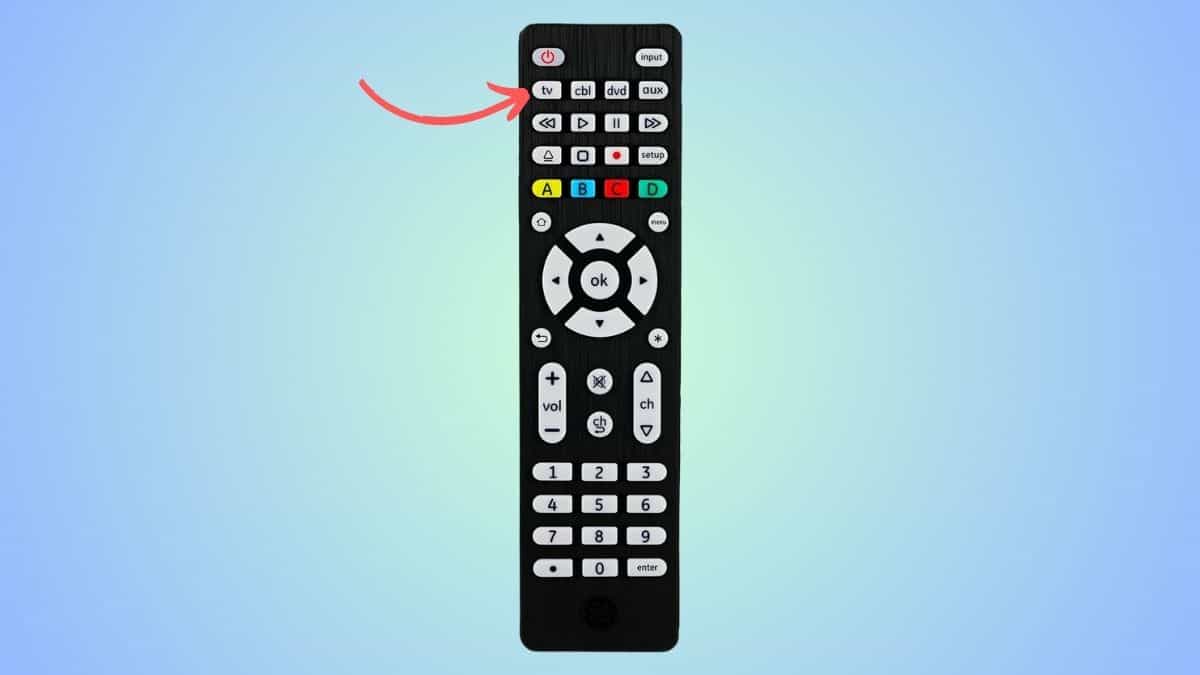
Power on and select ‘TV’
Power your TV on. Then, press the TV button on your remote to start programming it for your Samsung TV. For reference, you can see the ‘TV’ button on the GE remote below.
Step3
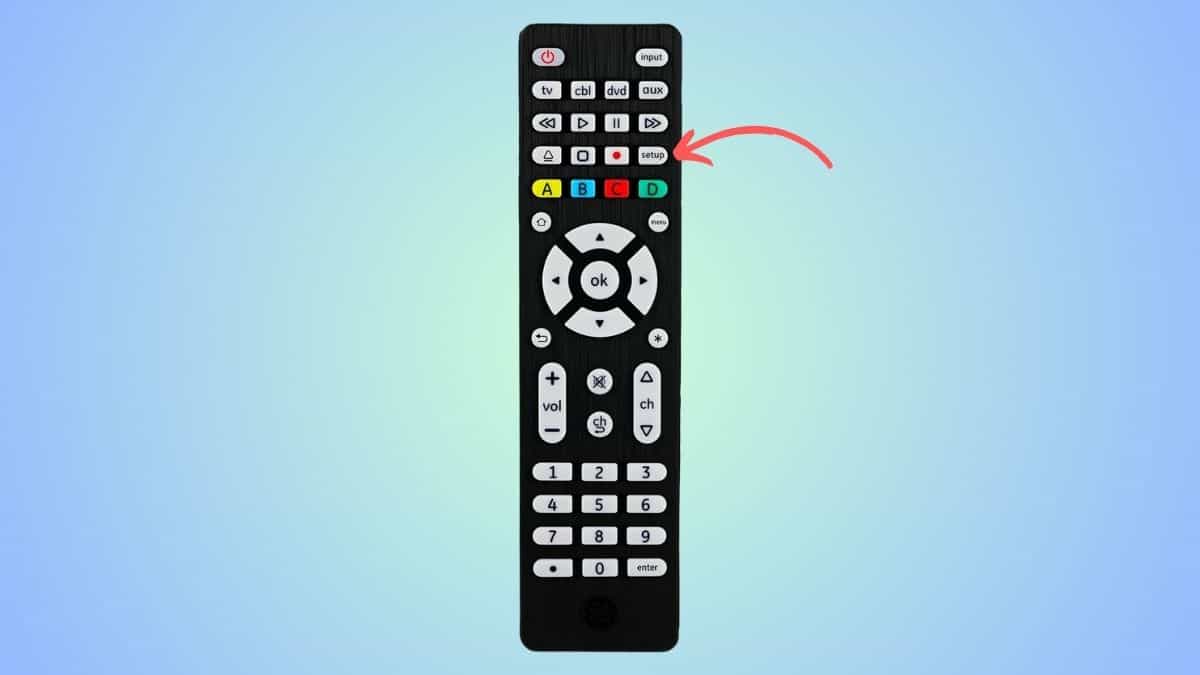
Turn the setup mode on
Next, you have to press and hold the ‘Setup’ button until you see a red light appear. You can see what the setup button should like in the picture below –
Step4
Enter the code
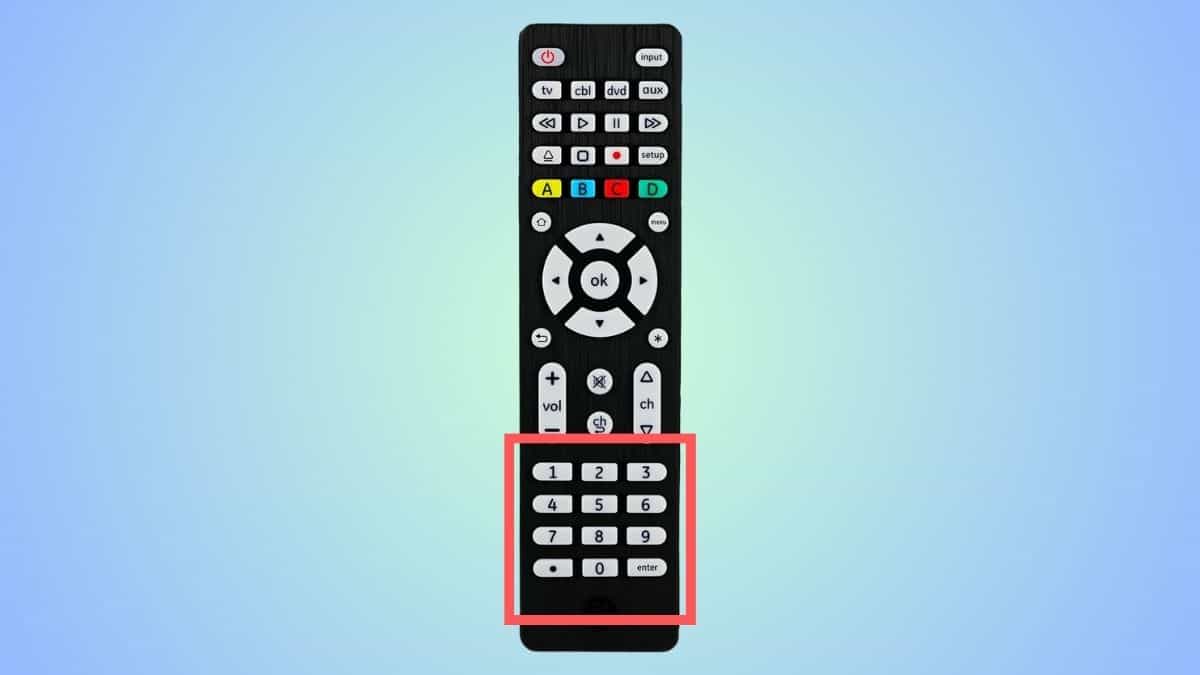 Now, enter the code you found in step 1. If the LED flashes twice, you’ve entered the correct code. If not, try another code from the list above.
Step5
See if the remote works
Once the right code is entered and set, the red light might turn off. Now it’s time to see if the remote is working. You can try powering it on and pressing a few buttons to see how it responds.
How to set up a universal remote with Samsung TV without codes
The code search method is a more automated approach, with your TV searching and trying the codes themselves. It’s generally faster and more straightforward than manually entering codes. Here’s how to do it –
Step1
Select ‘TV’ on your remote
First of all, ensure that your Samsung TV is powered on. Then, press the TV button on your universal remote, which will initiate the programming for your Samsung TV.
Step2
Enter setup mode
Next, press and hold the Setup button until the TV’s indicator light blinks twice. Then, press the same button again to trigger the learning mode on. For some devices, you might have to press the ‘mute’ button and then press zero.
Step3
Press the power button
Now, you have to aim the remote at the Samsung TV and then press the power button. If you have done everything correctly so far, the LED light will start blinking. This means that the remote is sending out different codes.
Step4
Test the remote
Now, if your Samsung TV turned off within 10 seconds of the remote light blinking, it might mean that the TV has found the correct code. To see if the remote works, power on the Samsung TV with your universal remote. Press some other buttons and see how they respond. If everything is working correctly, then your remote is setup.
If the TV does not turn off within 10 seconds or if the buttons are not responding correctly, you will have to repeat the steps above again until you get the code right.
How to use your phone as a remote for a Samsung TV
Using your phone as a controller is quite common now with smart TVs, and is a good stop-gap solution while you wait for a more dedicated remote for your device. Here’s how you set it up:
Step1
Download the SmartThings app
Find the SmartThings app either in the Google Play Store or App Store, and download it.
Step2
Connect your TV to the app
Then you’ll want to connect your TV to the SmartThings app. You can do this by selecting +, then Add device. Select your TV when you see it appear.
Step3
Select ‘remote control’ on your phone
Once you’re connected, select Remote Control at the bottom of your phone screen.
Step4
Your phone can now be used as a remote
You’ll now be able to use your phone just like a remote control.
Frequently Asked Questions
Can I use any universal remote for my Samsung TV?
Yes, most universal remotes are compatible with Samsung TVs. To ensure seamless operation, use the specific Samsung TV universal remote codes to program the remote. However, if you require further technical support for your appliance, it can be worth heading to the Samsung global website and getting in touch with Samsung Support, which can be contacted via live chat.
How can I find my Samsung TV code?
To find your Samsung TV code, refer to the universal remote’s manual or the remote manufacturer’s website. Alternatively, use the auto-search function on your universal remote to detect the code automatically. For specific models, check the TV’s settings menu or the label on the back of older models.
